There are various reasons why you might need to change the ownership or administrative information associated with your hosting account.
For example, with businesses, you may need to change who controls the information when someone leaves the company. Or, if you’re a web designer, your client might receive their website with a hosting account as part of the deal.
Below is a quick guide on the information to pay attention to when changing ownership for a hosting account.
Domain WHOIS
The first thing you want to do when changing the ownership of a hosting account is ensure that you update the contact information for the domain. Of note, this information does not change the registered owner of the domain, but is an important step in the transfer process. (This cannot be done through InMotion Central.)
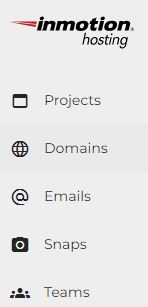
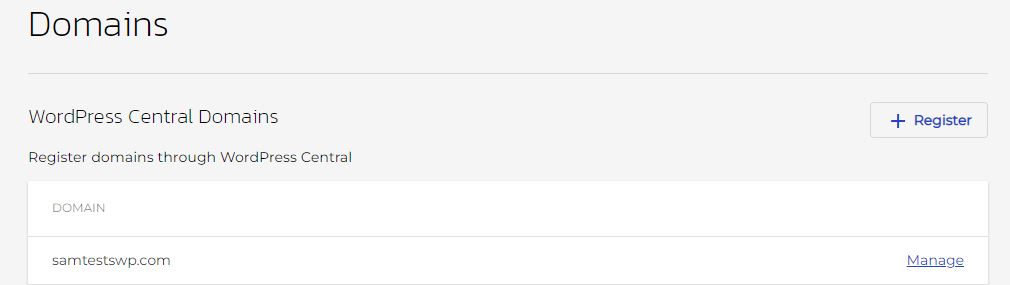
- From within your InMotion Central dashboard, click Domains.

- Under the Domain Registrations section, find the domain you want to edit information for, then click the Manage button for that domain.
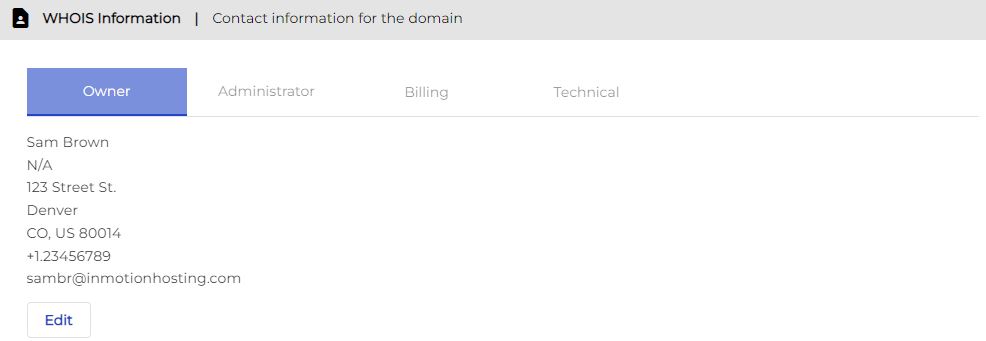
- Scroll down to the WHOIS Information section, select the tab for which information you want to edit (Owner, Administrator, Billing, or Technical) then click Edit.
- Update your WHOIS information, then click Save.
Domain Name Ownership
As we mentioned above, domain name ownership cannot be done through InMotion Central.
The domain name’s legal owner, known as the registrant, can only be changed by the InMotion Support Department. You will need to submit a request directly to the Live Support Department to have this completed.
How To Contact Technical Support
Credit Card and Billing Contact Information
You will also need to change the credit card information to the new owner, or at least remove your card so the new owner can enter their new information. Also, be sure to change all the contact information for the account.
There is only room for one person on the account, so be sure to change it to the main point of contact. The primary email address is especially important. This is the email address used to log into the AMP (Account Management Panel) and will receive billing and account emails.
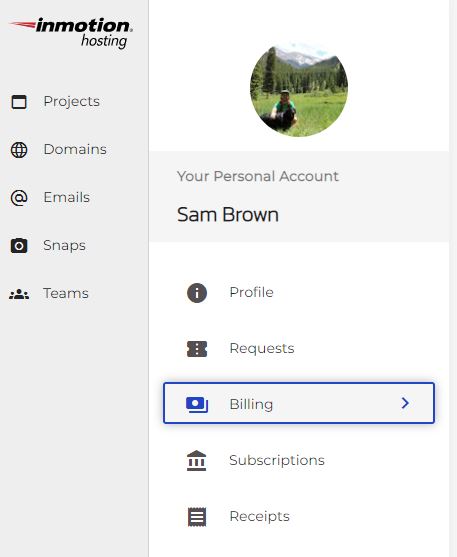
- From within your InMotion Central dashboard, click My Account > Settings.
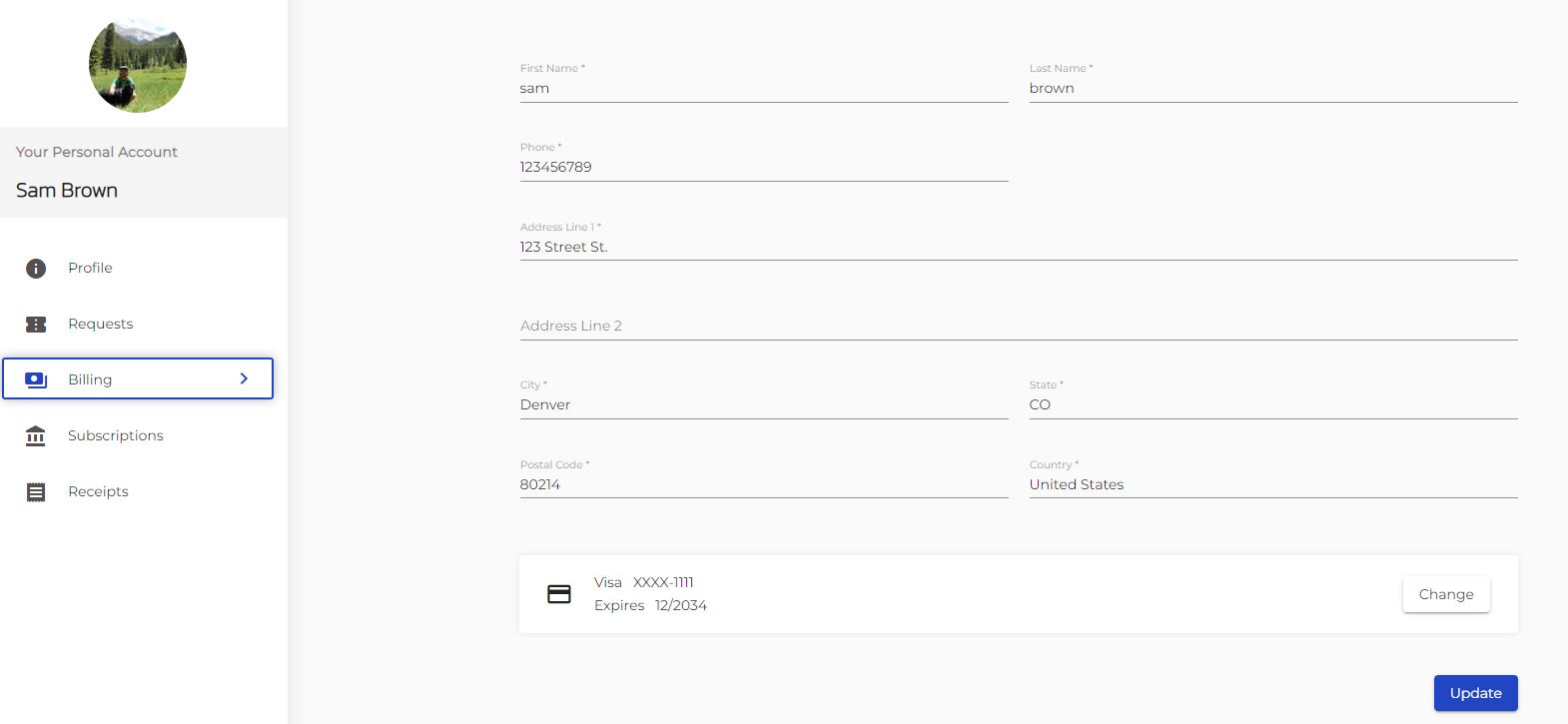
- Click Billing.
- To change your credit card information, click Change. Enter your new credit card information, then click Update.
- To change your billing contact information, edit any info you need to change, then click Update. Once done, you will see a message under your credit card info that says Successfully updated your billing information.

Password
Although the new owner will likely change the InMotion Central password once they have taken over, it is a good idea to change the password to a temporary one to be safe.
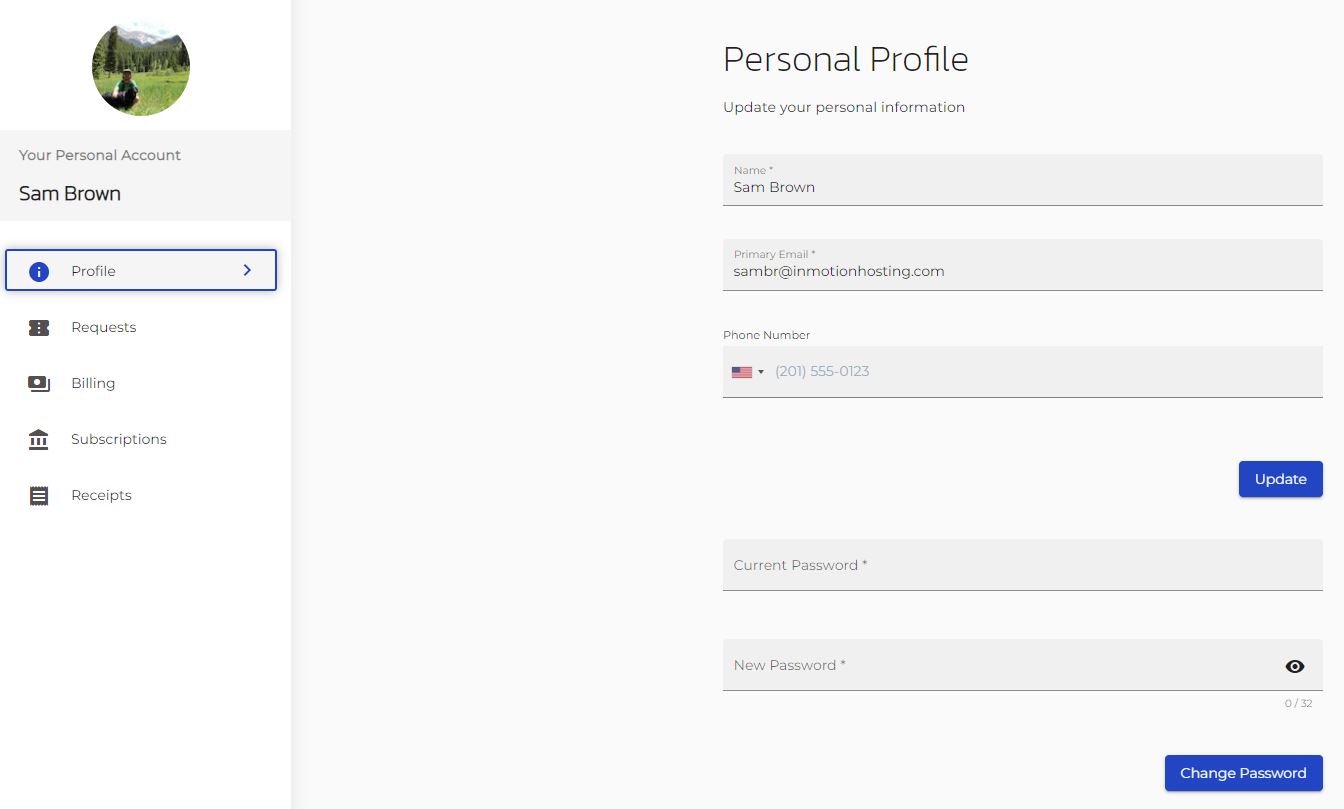
- From within your InMotion Central dashboard, click My Account > Settings.
- Enter your current password and your new password, then click Change Password.
Once you have completed the steps above, you will have successfully changed ownership of your hosting account in InMotion Central!

If you’re having trouble with your WordPress host, then check out InMotion’s WordPress Hosting. We provide secure, optimized servers that are priced to meet your budget needs!
 Free Domain Free SSLs Unlimited Bandwidth
WordPress Hosting

Leave a Reply