Google’s PageSpeed Insights is one of the tools you can use to measure your website’s Core Web Vitals.
It provides you with recommendations that are based upon current industry best practices for desktop and mobile web performance, which empowers you to make decisions that increase the performance of your website.
In this article, we will break down PageSpeed Insights and show you how InMotion Central can help you easily track, measure, and improve your PageSpeed Insights score.
What is PageSpeed Insights?
Google’s PageSpeed Insights is a tool designed to track and measure your website’s performance on desktop and mobile devices.
It analyzes the content on your website and provides you feedback and recommendations you can use to improve your website speed.
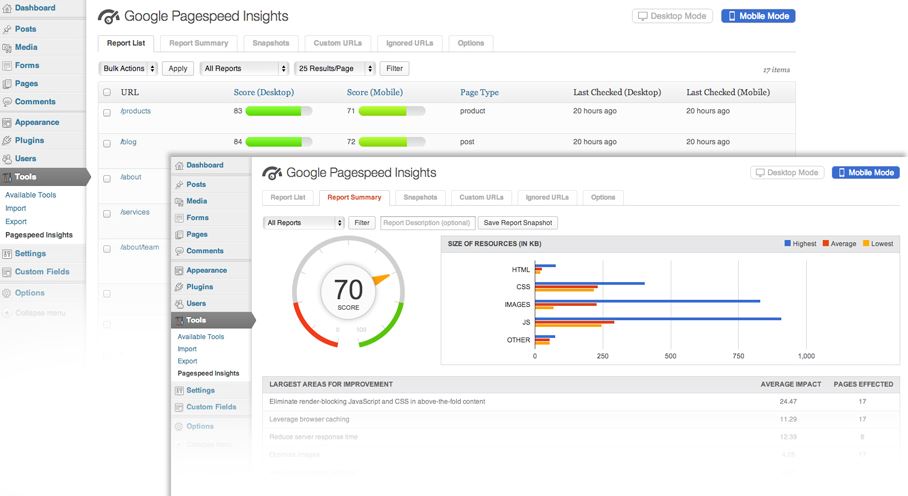
These summaries show your average Page Score, the largest areas for improvement across all of your reports, as well as your best and lowest performing pages.
PageSpeed Insights provides you with an overall score from 1-100, which is determined by Google Lighthouse.
Understanding Your PageSpeed Insights Score
Google tries to keep scores simple to understand, using a color-coded system that has three tiers.
The Google Lighthouse scores are colored according to the following ranges:
- 90-100 (green): Good
- 50-89 (orange): Needs Improvement
- 0-49 (red): Poor
It is suggested that websites should aim to have a good score of 90-100, although achieving a score of 100 is not expected as it is extremely difficult.
PageSpeed Insights With InMotion Central
Understanding your PageSpeed Insights and what you can do to improve them is a great way to boost your website’s overall performance.
With InMotion Central, it is really easy to add PageSpeed Insights to your website, as well as some other tools that can help you boost your score.
Now we will take a look at some plugins and tools to help integrate PageSpeed Insights and improve your website’s performance in InMotion Central.
PageSpeed Insights Plugin
The easiest way to start using PageSpeed insights in InMotion Central is to download the Google Pagespeed Insights plugin.
This plugin brings the full PageSpeed tool experience directly to your site. It provides a comprehensive solution for any webmaster looking to increase their site performance, their search engine ranking, and their visitors’ browsing experience.
Page reports utilize easy-to-read visualizations that allow you to quickly focus on the most important data to improve your site’s performance.
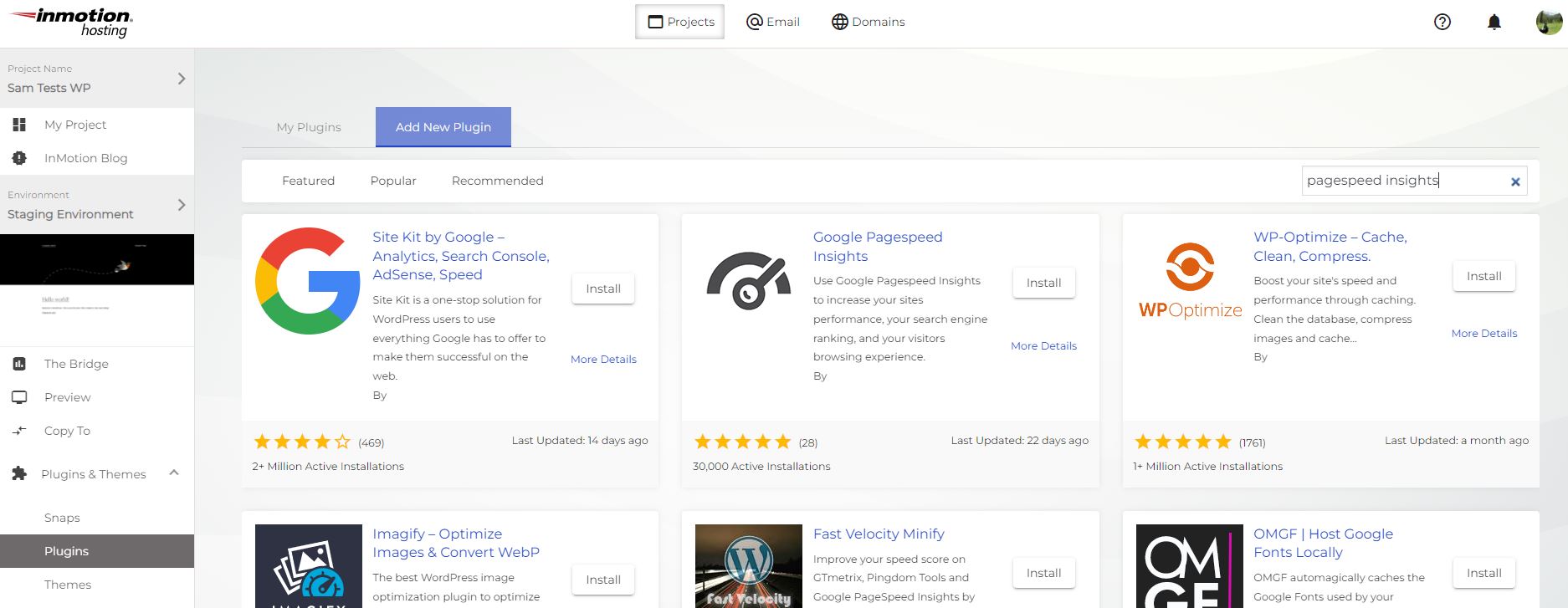
Adding the plugin in InMotion Central is easy:
- From your project dashboard, click Plugins & Themes > Plugins
- Click Add New Plugin
- In the search bar, type “PageSpeed Insights”
- Click Install on the PageSpeed Insights Plugin

W3 Total Cache
Now that you have the PageSpeed Insights plugin installed, you can start working on improving your score.
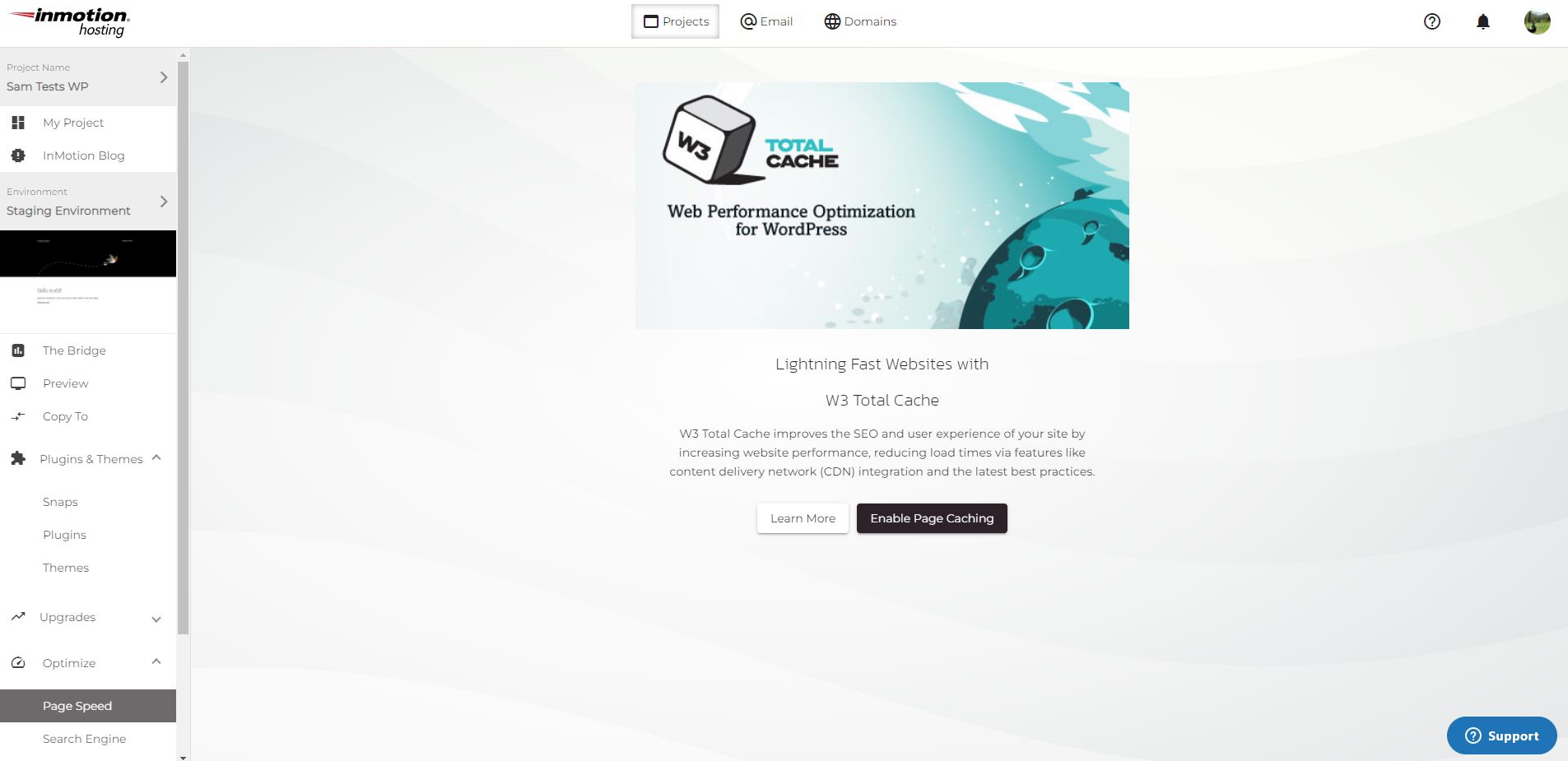
The first thing you can do in InMotion Central to start getting that score up is utilizing W3 Total Cache.
Pre-built into InMotion Central, W3 Total Cache improves your website’s SEO and user experience by increasing the performance of your site and decreasing the load times of your web pages.
Setting up W3 Total Cache in InMotion Central couldn’t be easier.
- From your project dashboard, click Optimize > Page Speed
- Click Enable Page Caching
BoldGrid Speed Coach
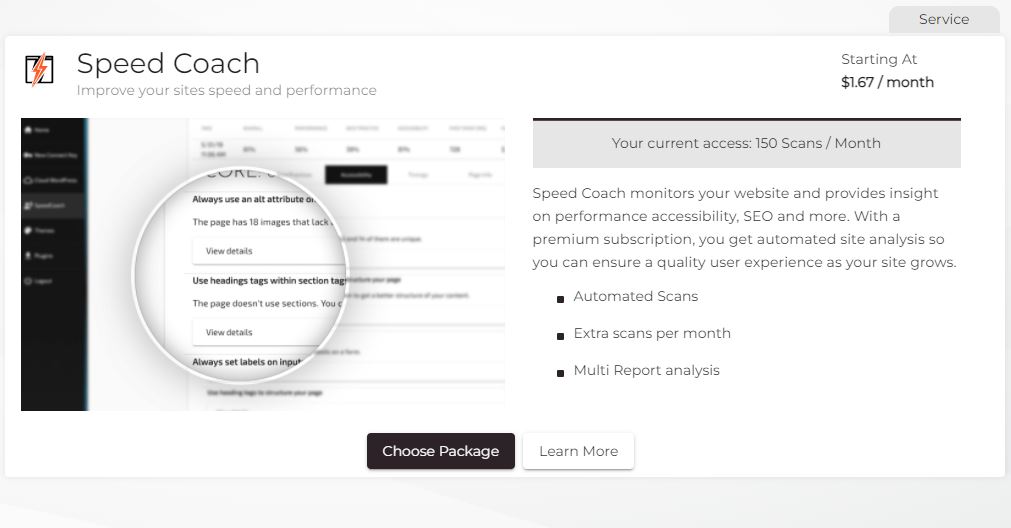
Another awesome feature offered in InMotion Central that can help you improve your website’s speed is the BoldGrid Speed Coach.
Speed Coach monitors your website and provides insight on performance, accessibility, SEO, and more.
This premium tool reveals the secrets to lightning-fast website loading speeds.
This feature can be added directly from your InMotion Central dashboard.
To add Speed Coach:
- From your project dashboard, click Upgrades > Addons
- Scroll to the bottom of the page adn click Choose Package
- Select which plan you want, then click Continue
- Fill out your billing information, then click Select Order
Once installed, all you have to do is simply type in your website’s URL and receive detailed actionable steps to massively improve your site’s loading speed.
PageSpeed Insights is a tool that offers valuable feedback and recommendations on how to improve your website’s speed and performance.
Thanks to InMotion Central and features like W3 Total Cache and BoldGrid Speed Coach, adding PageSpeed Insights to your website and improving your score is only a few clicks away.
 High-Performance VPS Fully-Managed Support Free SSL & Dedicated IP Advanced Server Caching

Leave a Reply