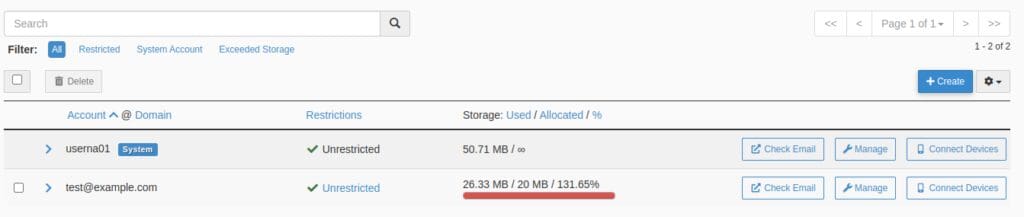
Before making any changes, you can check your current mailbox usage by going to the Email Accounts section in cPanel. From there, you’ll see how much space each account is using and whether it has exceeded its quota.
To fix this issue, one option is to simply delete emails to lower the size of your existing mail box. Alternatively, you can increase the mailbox quota directly within cPanel if your hosting plan allows for more space.
What “Mailbox Quota Exceeded” Means?
Email providers assign a specific storage quota to every mailbox. This includes all emails, attachments, folders, and sometimes even calendar items. When your mailbox hits this cap, the system will stop accepting or sending messages—triggering the “quota exceeded” warning.
How Do I Fix An Email Quota?
Fixing the “mailbox quota exceeded” error involves either freeing up space or upgrading your storage quota.
You can start by deleting unnecessary emails, especially from folders like Sent, Trash, and Spam, which are often overlooked but take up significant space. Another helpful step is archiving older emails using your mail client’s archive feature, allowing you to store them locally or on an external drive instead of the server.
If your storage needs continue to grow, upgrading your mailbox quota might be necessary, which can be done by contacting your hosting provider or IT administrator to discuss available upgrade options.
Increasing Email Quota in cPanel
- Login to your cPanel.
- Click on the Email Accounts icon under the email heading. You’ll see that our ‘[email protected]‘ account storage section is labeled in red.
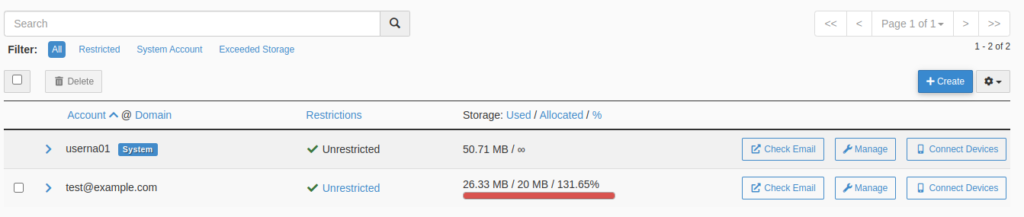
- Click on the Manage link next to the email address you are working with.

- Next, you’ll want to either change the numerical value for the size of the mailbox or you can set it to Unlimited.
- Scroll down and click the Update Email Settings button. You will then see a success message pop-up on the top right of the screen. You should then see the Storage for the account in green again.
- Change numerical value or set to Unlimited.

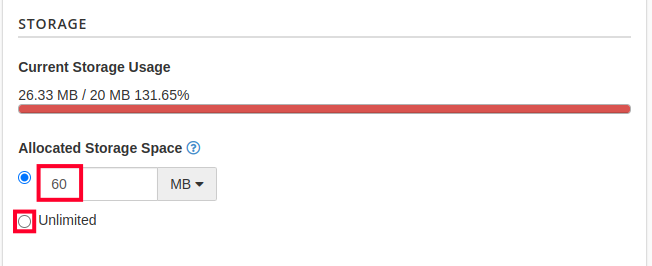

Pro Tip: If you are an enterprise business, consider at least 1GB+ or unlimited per user
Cannot Change MailDir Size! Error
At times, when you try to update the mail box quota size, you may receive an error message. If you get this error message, don’t worry it is easily corrected.
- Login to cPanel.
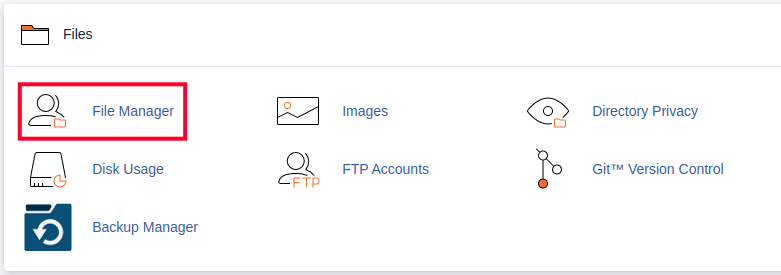
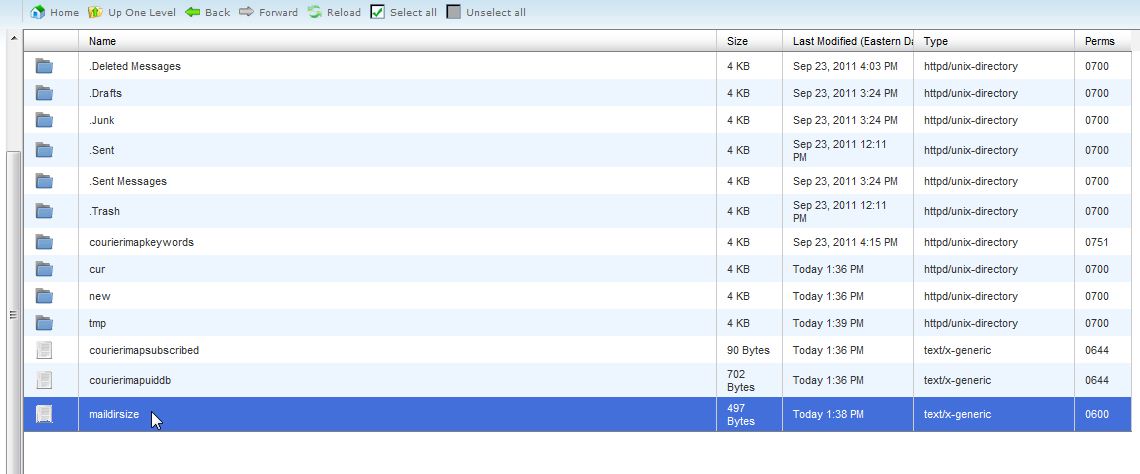
- Click File Manager, under the File section.
- Now, select the “mail” folder from the file tree in the left side pane.
- Open the email address folder for the account you were attempting to change the mailbox quota for.
- Find the “maildirsize” file and right-click on it, then select delete. Once the file is deleted you will have the ability to change the mailbox quota as the above steps instruct you.
Your Mail Server Send Quota Is Exceeded, What Does This Mean?
Congratulations, now you know how to fix the Mailbox Quota Exceeded error! To help avoid running into this issue again, it’s a good idea to configure mailbox quota notifications in cPanel. These alerts can notify you when an email account is nearing its storage limit, giving you time to take action before problems occur.
If you need help setting up notifications or exploring upgrade options, don’t hesitate to contact our support team for assistance.

Leave a Reply