Overview
The IPMI (Intelligent Platform Management Interface) console in AMP provides browser-based remote console access to your Dedicated Server. It allows you to interact with your server at the hardware level, even if the operating system is unresponsive.
Note: While labeled as IPMI in AMP, this implementation provides only core HTML5 iKVM (keyboard, video, mouse) functionality. Advanced IPMI features such as hardware monitoring and virtual media (ISO mounting) are not included.
What the IPMI Console Can Do
With IPMI console access, you can:
- Open a remote console to your server
- View the boot process in real time
- Interact with the system as if physically present
- Send keyboard input, including special key combinations
- Capture screenshots or record sessions
- Perform power actions (power on, off, reboot, shutdown)
This access works independently of the operating system.
When to Use the IPMI Console
Use the IPMI console when:
- SSH or RDP access is unavailable
- The server is not responding
- The system fails to boot
- You are troubleshooting kernel or boot issues
- You need BIOS-level access
- You need to manually power cycle the server
How to Access IPMI in AMP
- Log in to AMP (Account Management Panel).
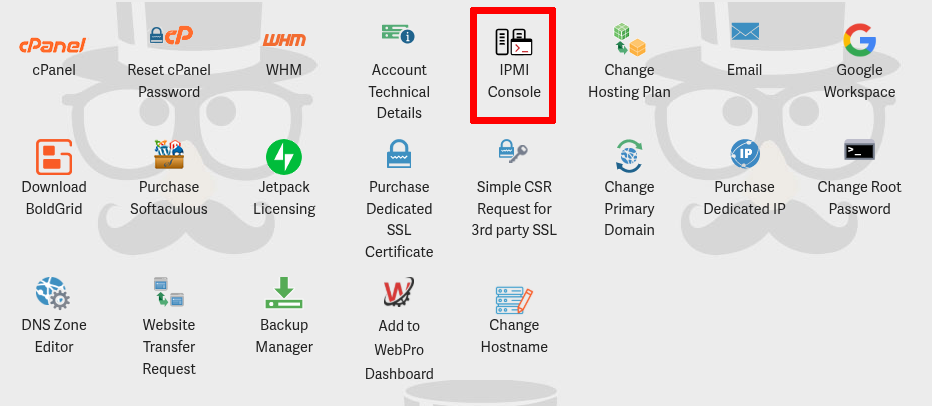
- On the My Account AMP homepage, locate the hosting controls for your Dedicated Server. Click IPMI Console.

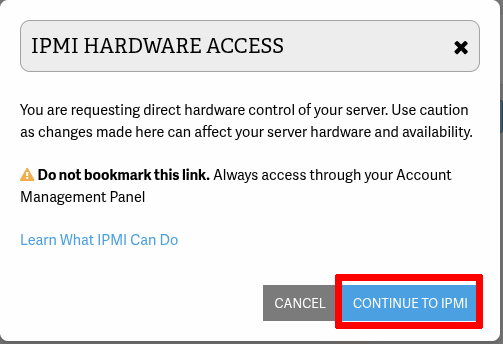
- In the modal window, click Continue to IPMI.
- The IPMI console will open in a new browser tab.
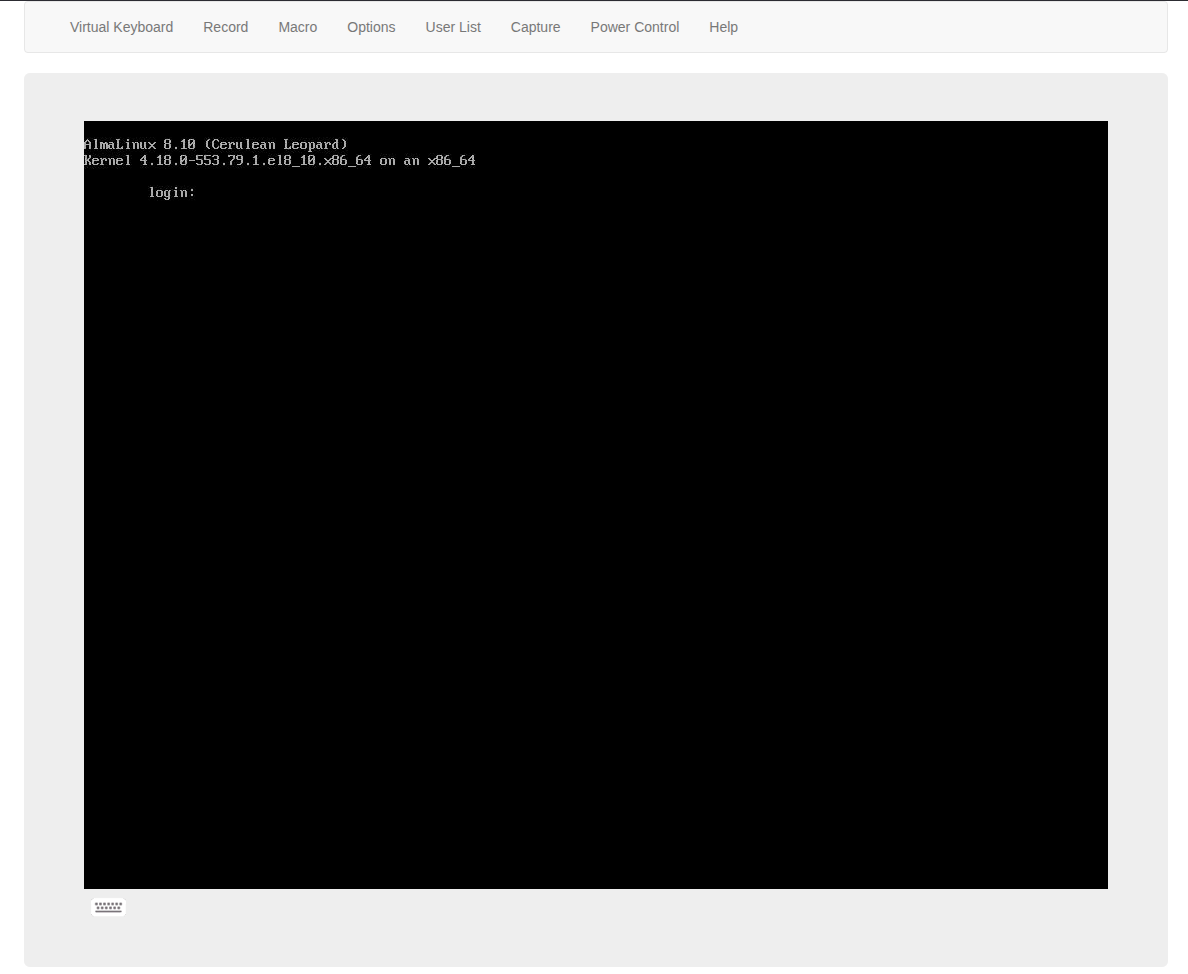
Note: Ensure your browser allows pop-ups.
IPMI Console Overview
The IPMI console includes several menu options:
Virtual Keyboard
Provides an on-screen keyboard for input when a physical keyboard is not working.
- Click Virtual Keyboard in the menu
- Use the keyboard icon at the bottom-left of the console
Record
Allows recording of the console session.
- Start: Begins recording (default duration: 2 minutes)
- Stop: Ends recording manually
- Recordings are saved locally
To adjust recording duration:
- Go to Options → Preference
Macro
Provides quick access to common key combinations.
Examples include:
- Ctrl + Alt + Del
- Alt + Tab
- Alt + Esc
- Ctrl + Tab
- Alt + F4
- Print Screen
- Function keys (F1, Alt+F1, etc.)
Also supports:
- Holding/releasing Alt keys
- Pressing/holding Windows keys
Options
Hotkey Settings
Customize keyboard shortcuts for:
- Adjust Mouse
- Exit Console
- Refresh Screen
- Send Ctrl + Alt + Del
- Toggle Mouse Display
Custom hotkeys are limited to Ctrl + Shift + (F2–F12 or 0–9)
Preferences
Display
- Recording duration
- Display scale
- Image quality
Input
Mouse modes:
- Absolute Mouse
- Relative Mouse
- Single Mouse
Single Mouse mode is not supported in Internet Explorer
Language
- Select interface language
Video Stream Control
- Enables QoS optimization for network performance
User List
Displays active sessions, including:
- Session ID
- Username
- IP address
Capture
- Takes a screenshot of the current console
- Saves the image locally
Power Control
Provides remote power management:
- Set Power On
- Set Power Off
- Software Shutdown
- Set Power Reset
Use caution when performing power actions.
Limitations
- Provides console access only (iKVM functionality)
- No hardware sensor monitoring
- No ISO mounting or virtual media
- Cannot reinstall OS through the console
- Best supported in Google Chrome (HTML5)
- Sessions may disconnect after inactivity
Server Eligibility
IPMI console access is:
- Available on select Dedicated Servers
- Not available on VPS or Shared Hosting
If your server supports it, the option will appear in AMP.
Troubleshooting
IPMI Console Does Not Launch
- Disable pop-up blockers
- Use Google Chrome
- Clear browser cache and cookies
- Ensure your AMP session is active
The IPMI Console Couldn’t be Opened Due to a System Error
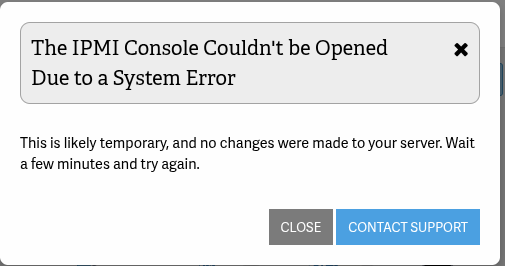
- Wait a few minutes and try again
- Ensure that the IPMI console is not in-use in another tab or by another person. IPMI only supports one person logged in to the console at a time
- If the issue persists, contact Technical Support
Black Screen
- The server may be powered off
- Use Power Control → Power On
Console Disconnects
- Refresh the page
- Relaunch from AMP
- Check your internet connection
FAQ
Does IPMI replace SSH or RDP?
No. IPMI provides hardware-level access, while SSH and RDP provide operating system-level access.
Can I mount an ISO or reinstall the OS?
No. ISO mounting and OS installations are not supported in this implementation.
Is this full IPMI functionality?
No. This is a limited implementation focused solely on console (iKVM) access and power control.

Leave a Reply