A 301 redirect tells browsers and search engines that a page or site has moved permanently to a new location. It passes nearly 100% of SEO value (link equity) to the new URL and prevents 404 errors for visitors.
Use 301 redirects when:
- Changing URL structures or page names
- Migrating to a new domain
- Switching from HTTP to HTTPS
- Enforcing www vs. non-www (canonicalization)
- Retiring old content and pointing users to relevant pages
When Do You Need a 301 Redirect?
Common scenarios include:
- Reorganizing site structure (e.g., /old-page.html → /new-page/)
- Domain migration (olddomain.com → newdomain.com)
- Removing trailing slashes or fixing duplicate content issues
- Enforcing HTTPS for security and SEO
- Consolidating www and non-www versions of your site
.htaccess vs. cPanel Redirects: Which Should You Use?
Editing .htaccess directly gives full control and works at the server level (faster). Ideal for complex rules.
cPanel Redirects (under Domains → Redirects) is beginner-friendly for simple cases but less flexible for patterns or multiple rules.
For most users on InMotion Hosting, start with cPanel for basics. Use .htaccess when you need regex, multiple conditions, or advanced logic.

How to Edit Your .htaccess File in cPanel
On a Linux server you would use your .htaccess file to implement a 301 redirect for your pages. We’ll now show you how to edit the .htaccess file, then go over the different redirect options.
- Log in to cPanel.
- Under Files, click on File Manager.

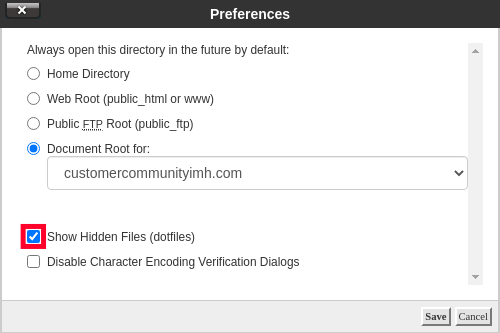
- Ensure that Show Hidden Files is selected by clicking Settings on the top right corner of the File Manager.
- Select the Document Root (usually
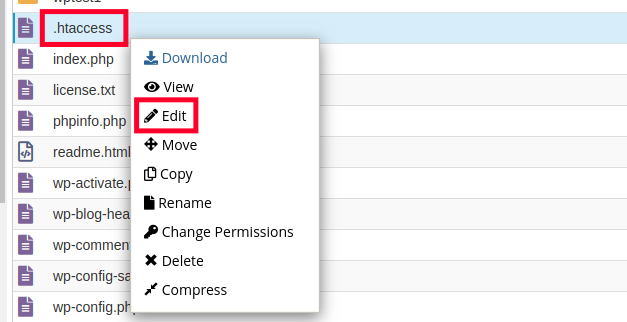
public_html), or choose a domain from the drop-down. - Right-click on the .htaccess file and select Edit.
- If your .htaccess file is still not found after the previous steps, click on New File at the top-left, name the file .htaccess, and set the directory for the file to be created to /public_html/ or the document root of your site.
- You might have a text editor encoding dialog box pop-up, you can simply click on Edit to proceed.
- Add your redirect rules at the top or bottom of the file (avoid middle if other rules exist).
- Click Save Changes.

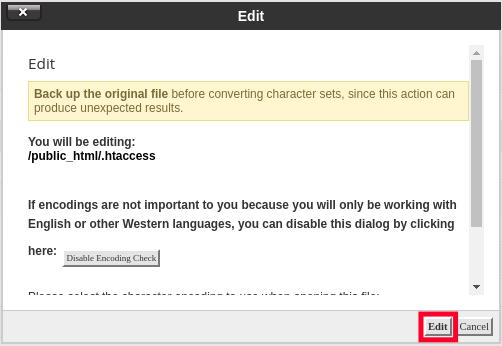
Important: Always back up your original .htaccess file before editing. A syntax error can make your site unavailable.
How to Redirect a Single Page or File with 301
Use the simple Redirect directive (from mod_alias):
To redirect individual files, like example.com/oldfile.html to newfile.html you can use a 301 redirect like this:
Redirect 301 /oldfile.htm /newfile.html
To redirect one specific file to another domain such as example.com/oldfile.html to example.net/newfile.html:
Redirect 301 /oldfile.html https://newdomain.net/newfile.html
Both of these methods work well for exact paths or prefixes.
How to Redirect an Entire Old Domain to a New Domain
If you had an old domain such as example.com and you decided to use example.net for a website, you could setup a 301 redirect for the entire domain, so that old links to example.com carry over.
Sample of code from example.com domain’s .htaccess file:
RewriteEngine on
RewriteCond %{HTTP_HOST} ^(www.)?olddomain.com$ [NC]
RewriteRule ^(.*)$ https://newdomain.com/$1 [R=301,L]
How to Force www on Your Domain
A search engine such as Google interprets example.com and www.example.com as essentially two separate websites. It is recommended that users pick one version they’d like search engines to display. By using a 301 redirect, users can specify which domain name is displayed on their site.
If you have a number of links on the web where people are linking to your site as example.com, but you would prefer your visitors end up at www.example.com instead, you can force this version of your domain with these rules:
RewriteEngine On
RewriteCond %{HTTP_HOST} ^example.com [NC]
RewriteRule ^(.*)$ https://www.example.com/$1 [R=301,L]
How to Force Non-www on Your Domain
If you have a lot of links on the web where people are linking to your site as www.example.com, but you would prefer your visitors end up at example.com instead, you can force this version of your domain with these rules:
RewriteEngine On
RewriteCond %{HTTP_HOST} ^www.example.com [NC]
RewriteRule ^(.*)$ https://example.com/$1 [R=301,L]
How to Enforce HTTPS (HTTP to HTTPS Redirect)
Add this near the top of your .htaccess (before other rewrite rules):
RewriteEngine On
RewriteCond %{HTTPS} off
RewriteRule ^(.*)$ https://%{HTTP_HOST}/$1 [R=301,L]
How to Redirect Files by Extension (e.g., .php to .html)
To re-direct all of one type of file to another, such as example.com/file.php to example.com/file.html
RewriteEngine On
RewriteCond %{REQUEST_URI} .php$
RewriteRule ^(.*).php$ /$1.html [R=301,L]
You should now know how to properly setup 301 permanent redirects on your website to help ensure that search engines and visitors coming to your site from older links can still get to your new content.
Redirect vs. RewriteRule: When to Use Each
Redirect 301(mod_alias): Simpler, great for basic redirects and prefix matching.RewriteRule(mod_rewrite): More powerful for patterns, conditions (RewriteCond), and complex logic. Always include[R=301,L]for permanent redirects.
Best practice: If you use any RewriteRule, use RewriteRule for all your redirects to avoid module execution order issues.
How to Set Up 301 Redirect within cPanel
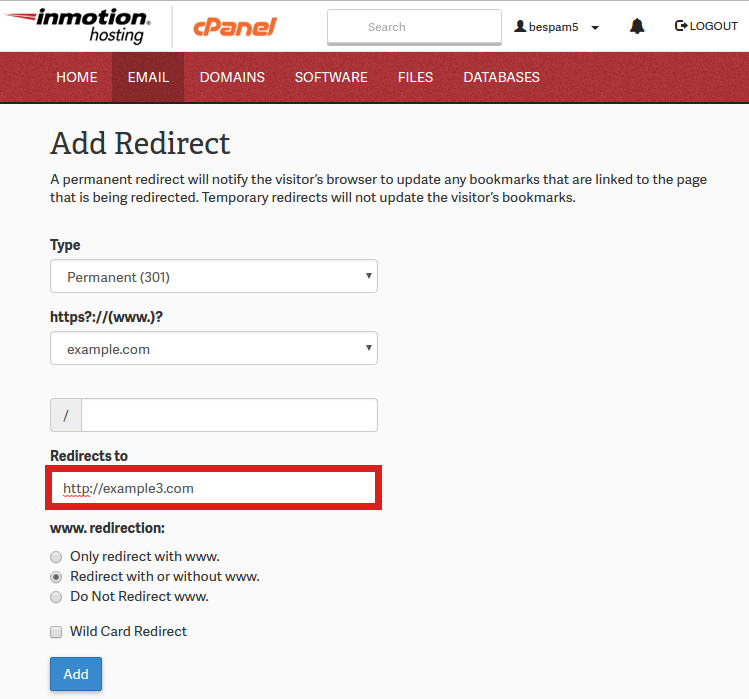
For users that host their sites on cPanel-based hosts, it is possible to set up redirects via the cPanel interface. This tool automatically adds the necessary code to the .htaccess file for the redirect to function properly.
- Log in to cPanel.
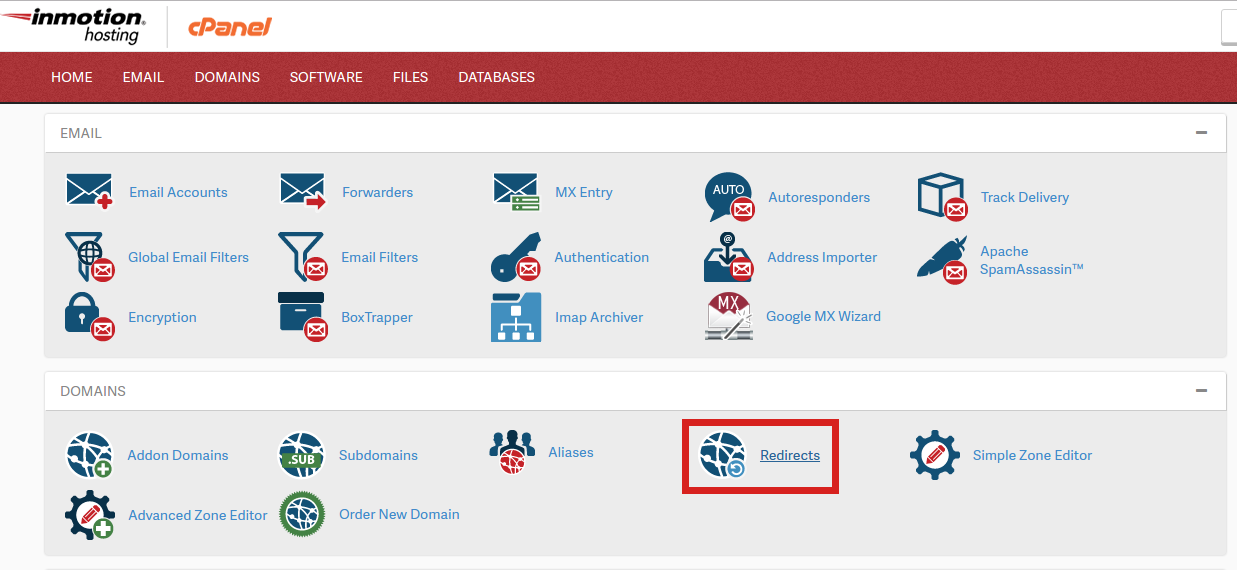
- Click the Redirects button in the Domains section.
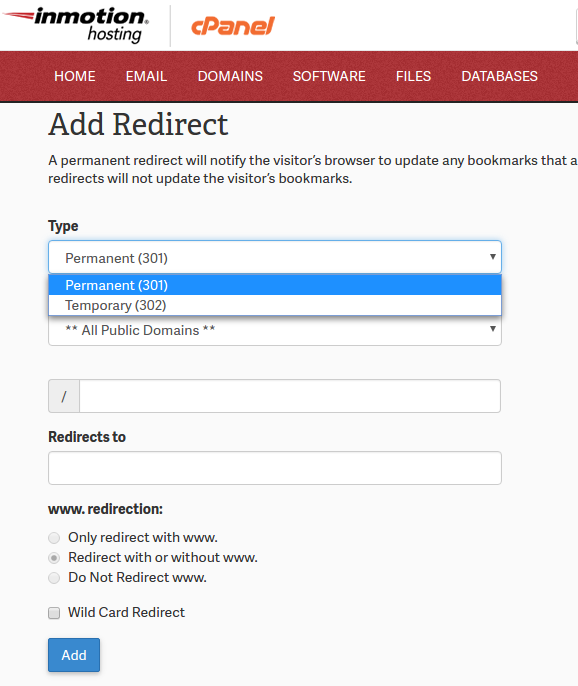
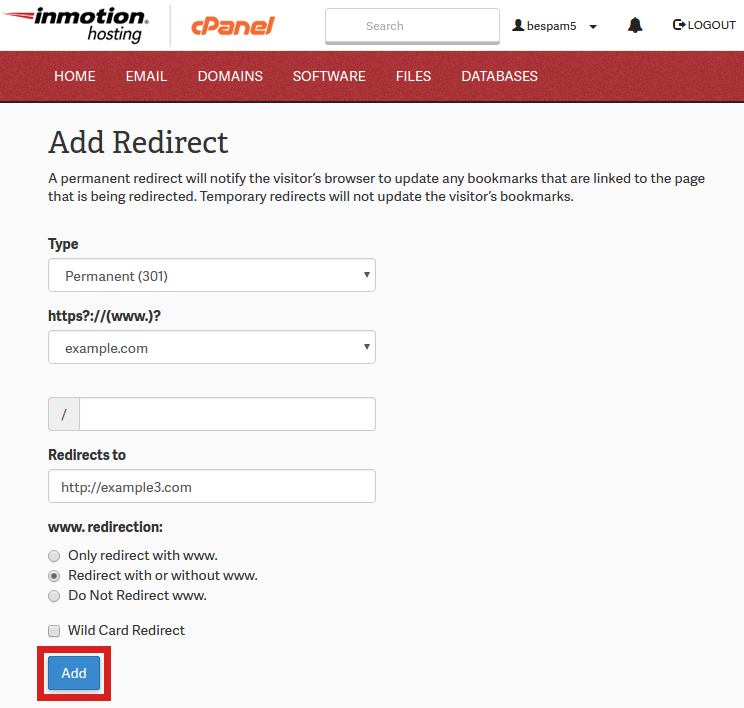
- You will then be on the Add Redirect page. Click the drop-down box for Type and choose either a Permanent (301) or Temporary (302) redirect.
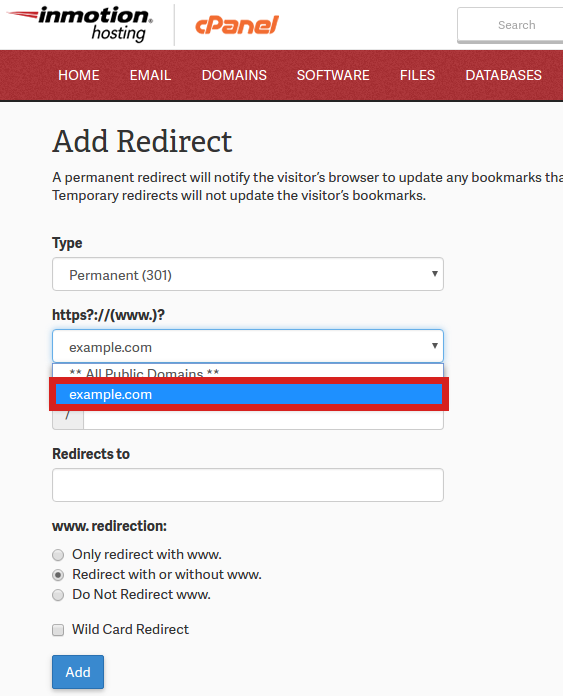
- Click the next drop-down box and choose the domain you want to redirect.
- For the slash ‘/’ field, enter any folder names (if necessary).
- Enter the address you want to redirect to in the Redirects to section.
- Choose if you want to “Only redirect with
www.“, “Redirect with or withoutwww.“, or “Do Not Redirectwww.“ - Check the box if you want to create a Wild Card Redirect. This will add the the file/folder name after the url when it redirects. For instance, example.com/test.php would redirect to example2.com/test.php.
- Click Add when finished.
Common Issues and How to Fix 301 Redirect Problems
- Redirect loops or “too many redirects”: Check rule order (specific rules first) and avoid chaining.
- Rules not working: Clear browser cache, CDN cache, and server opcode cache. Test with incognito mode.
- Mixed www/non-www or HTTP/HTTPS: Combine rules carefully or use a single canonical set.
- Syntax errors: One missing character can break the site—test incrementally.
- cPanel redirects conflicting with .htaccess: Remove one method to avoid conflicts.
Testing tip: Temporarily use R=302 (temporary) while testing, then change to 301 once verified. Use tools like redirect-checker.org or browser dev tools (Network tab) to confirm status codes.
Additional Tips for Success
- Place specific redirects before general ones.
- Avoid redirect chains (old → intermediate → final) — go directly to the final URL.
- After changes, submit updated URLs in Google Search Console.
- For WordPress sites, consider a plugin like Redirection for easier management, but server-level .htaccess is faster.
You should now be able to set up reliable 301 permanent redirects on your InMotion Hosting account. This helps preserve SEO value, improve user experience, and keep your site running smoothly during changes.
If you run into issues, feel free to reach out to InMotion Support with your exact rules and the URLs you’re trying to redirect.

Leave a Reply