The PHP-FPM “server reached max_children” warning is a common performance issue on VPS and dedicated servers using PHP-FPM (FastCGI Process Manager). It appears in the PHP-FPM error log when the pool has exhausted all available child processes and cannot handle new incoming PHP requests. This often results in slow page loads, 502/504 Gateway Timeout errors for visitors, or queued requests.
WARNING: [pool www] server reached max_children setting (5), consider raising itThis guide explains the root causes, how to diagnose the issue accurately, calculate safe values for pm.max_children, and apply fixes. It is tailored for InMotion Hosting VPS/dedicated servers (cPanel/WHM with UltraStack or custom PHP-FPM setups) running on AlmaLinux, CentOS, Ubuntu, or similar distributions. The information reflects current best practices as of 2026.
How PHP-FPM Process Management Works
PHP-FPM maintains a pool of worker processes (children) to handle PHP requests efficiently without spawning a new process for every request. The key directive is pm.max_children, which sets the hard limit on simultaneous PHP workers per pool.
When all children are busy processing scripts (often waiting on databases, APIs, or slow code), new requests cannot be served immediately. If the backlog grows, the web server (Apache or NGINX) may return errors to users.
PHP-FPM supports three process manager modes:
- static: Fixed number of children (best for high-traffic, dedicated resources; fastest but uses constant memory).
- dynamic: Starts with
pm.start_serversand scales betweenpm.min_spare_serversandpm.max_spare_servers(flexible balance). - ondemand: Spawns processes only when needed and kills idle ones after
pm.process_idle_timeout(lowest memory usage, slight startup delay).
Most shared or lightly loaded VPS setups default to dynamic or ondemand with a conservative pm.max_children = 5.
Common Causes of the max_children Error
Several factors can trigger this warning:
- High concurrent traffic: Legitimate visitors, bots, or traffic spikes exceed the current limit.
- Slow or inefficient PHP scripts: Long database queries, unoptimized plugins/themes (especially WordPress), external API calls, or memory leaks keep workers occupied longer.
- Insufficient
pm.max_childrensetting: The default value of 5 is often too low for real-world VPS usage. - Resource bottlenecks: Low available RAM, high CPU load, or swapping causes processes to run slowly, tying up workers.
- Missing caching: No opcode cache (OPcache), object cache (Redis/Memcached), or full-page cache forces every request through PHP.
- Bots or attacks: Crawlers, XML-RPC abuse, or brute-force attempts generate excessive requests.
Always investigate server resources and application performance before simply raising limits. Over-allocating children can lead to Out-Of-Memory (OOM) kills and server instability.
Step 1: Diagnose the Problem
Check PHP-FPM Error Logs
Locate the log for your pool (usually www or domain-specific):
tail -f /var/log/php-fpm/www-error.log
# or for specific PHP version
tail -f /var/log/php8.3-fpm.log
Look for the reached max_children warning and note the timestamp and pool name.
Monitor Current Resource Usage
Check memory usage of PHP-FPM processes:
ps -ylC php-fpm --sort:rssOr calculate average process size (in MB):
ps -ylC php-fpm --sort:rss | awk '{sum+=$8; ++n} END {print "Avg="sum/n/1024" MB"}'Typical PHP worker size ranges from 30–150 MB depending on your application (WordPress with many plugins can exceed 80–100 MB).
View overall system resources:
Also check slow query logs in MySQL/MariaDB and web server access logs for patterns.
Review Server Load and Traffic
Use tools like:
top
netstat -tn | grep :80 | wc -l   # or :443
For WordPress sites, review plugin performance and enable query monitoring.
Step 2: Calculate Safe pm.max_children Value
A reliable formula is:
Available RAM for PHP ÷ Average memory per PHP-FPM process
Steps to calculate:
- Determine total server RAM.
- Subtract RAM reserved for OS, web server, database (MySQL/MariaDB typically 1–2 GB+), and other services.
- Leave a 10–20% safety buffer to avoid swapping/OOM.
- Divide by the average RSS (Resident Set Size) of a PHP worker.
Example:
- Server: 8 GB RAM
- Reserved: 1 GB (OS) + 2 GB (MySQL) = 3 GB
- Buffer: 10% of remaining (~0.5 GB)
- Net for PHP: ~4.5 GB (4608 MB)
- Average worker: 80 MB
- pm.max_children ≈ 57 (round down to 50–55 for safety)
Always test changes gradually and monitor under load. For multiple sites/pools, allocate RAM proportionally.
Step 3: Choose the Right Process Manager Mode
- High-traffic single site → Use static for lowest latency.
- Variable traffic or shared resources → Use dynamic.
- Low-traffic or memory-constrained VPS → Use ondemand.
Recommended starting values for dynamic mode (adjust based on calculation):
pm = dynamic
pm.max_children = 50          ; Calculated value
pm.start_servers = 15         ; ~25-30% of max_children
pm.min_spare_servers = 10     ; ~20% of max_children
pm.max_spare_servers = 30     ; ~60% of max_children
pm.max_requests = 500         ; Restart workers after N requests (helps with leaks)
For static:
pm = static
pm.max_children = 50
For ondemand (add pm.process_idle_timeout = 10s).
Step 4: Edit PHP-FPM Configuration (InMotion Hosting / cPanel WHM)
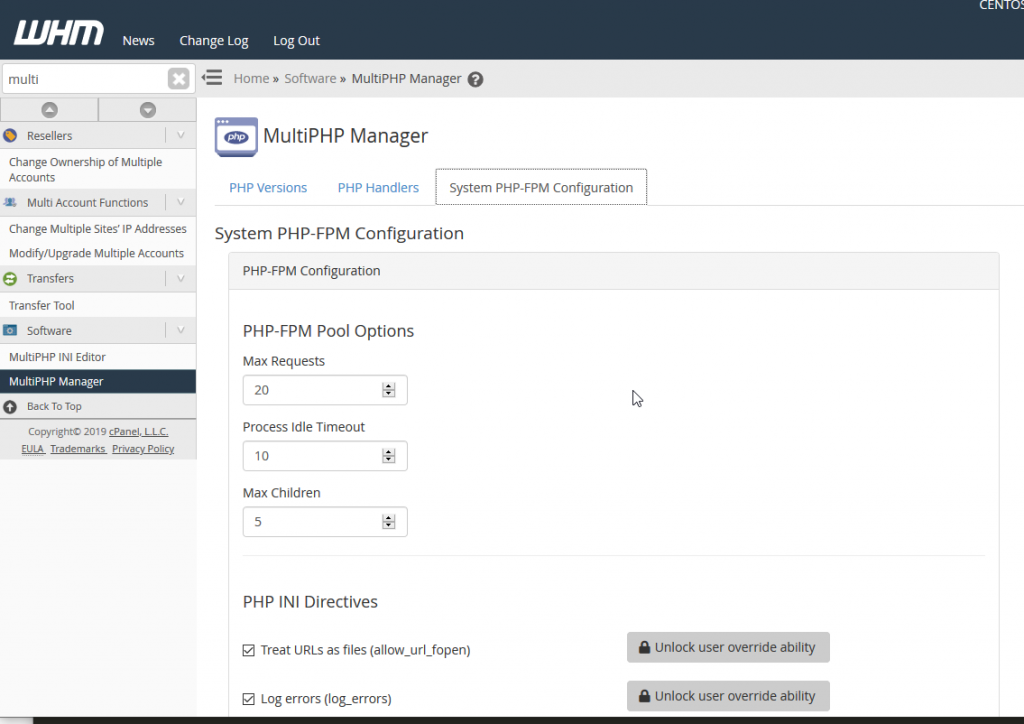
Using WHM MultiPHP Manager (Easiest for InMotion Users)
- Log in to WHM as root.
- Search for and open MultiPHP Manager.
- Go to the System PHP-FPM Settings tab (or per-version settings).
- Locate Max children and increase it to your calculated value.
- Save / Update the configuration.
This method applies system-wide or per-PHP version changes.
Manual Edit (Advanced / Per-Pool)
Edit the pool configuration file (common locations):
# cPanel-style
nano /opt/cpanel/ea-phpXX/root/etc/php-fpm.d/www.conf
# or
nano /etc/php/8.3/fpm/pool.d/www.conf
Apply the changes from Step 3. For per-domain overrides, edit the user-specific pool file if present.
Set strict file permissions:
chmod 644 /path/to/www.confStep 5: Restart PHP-FPM and Verify
sudo systemctl restart php-fpm
# or for specific version
sudo systemctl restart php8.3-fpm
On some systems the service name is php-fpm or php-fpm.service.
Test the site under normal and simulated load. Monitor logs again:
tail -f /var/log/php-fpm/*error.logCheck status (if pm.status_path is enabled):
curl http://your-site/statusAdditional Optimization Tips
- Enable and tune OPcache (opcode caching) in
php.ini. - Implement Redis or Memcached for object caching.
- Use a full-page caching plugin/solution (e.g., for WordPress).
- Optimize database queries and code; fix slow scripts.
- Consider NGINX + PHP-FPM for better performance over Apache.
- Set
pm.max_requeststo recycle workers periodically and mitigate memory leaks. - Monitor with tools like New Relic, Munin, or
htopafter changes.
If you run multiple sites, create separate pools with tailored limits instead of one large shared pool.
When to Contact Support
If increasing pm.max_children causes swapping, OOM errors, or the issue persists:
- Your server may need more RAM/CPU.
- There could be underlying code or plugin problems.
- InMotion Hosting customers should open a support ticket with log excerpts and
free -houtput.
Properly tuned PHP-FPM eliminates the max_children error, improves response times, and prevents unnecessary server strain. Start conservatively, test thoroughly, and scale based on real traffic patterns. For InMotion UltraStack or custom VPS setups, these adjustments provide significant performance gains while maintaining stability.
If you are unsure of the proper value, contact our live technical support team or submit a support ticket. You can also find articles and guides on PHP-FPM and WordPress Stack Optimization Guide: Tuning for VPS & Dedicated Servers in the InMotion Hosting Support website.

Leave a Reply